Using Cobalt Strike
Cobalt Strike Introduction
Cobalt Strike is a well-known penetration testing tool developed by a U.S. Red Team and is often called CS in the industry. It supports multiple host callback methods and protocols, and integrates features such as privilege escalation, credential dumping, port forwarding, SOCKS proxying, Office attacks, file bundling, phishing, and more. It is divided into a server side (teamserver) and client side. There is one server and there can be multiple clients, allowing distributed team collaboration. The client can run on Windows, while the server must run on Linux. Both require a Java environment.
Environment Setup
CobaltStrike4.0 password: cs66
Client: Windows 10 (your own host)
Server: Ubuntu 20.04 (overseas VPS)
First purchase an overseas VPS server as the server side. You can also use a virtual machine, but remember that it must be Linux.
Install Java
For configuring the Java environment on the Windows client, see my previous article. I will not repeat it here. The following introduces server-side configuration.
# Enter root directory
cd /
# Check whether Java is installed
java -version
# Install Java
apt install openjdk-14-jre-headless
If the following output is returned, installation succeeded.
root@vultr:/# java -version
openjdk version "14.0.2" 2020-07-14
OpenJDK Runtime Environment (build 14.0.2+12-Ubuntu-120.04)
OpenJDK 64-Bit Server VM (build 14.0.2+12-Ubuntu-120.04, mixed mode, sharing)
Environment variables:
# Check the Java installation path. Here it indicates that there is only one choice in the java link group
# (providing /usr/bin/java), so no environment variable configuration is needed.
root@vultr:/# update-alternatives --config java
There is only one alternative in link group java (providing /usr/bin/java): /usr/lib/jvm/java-14-openjdk-amd64/bin/java
Nothing to configure.
Upload the Server Files to the VPS
Upload CobaltStrike4.0 to the VPS server. There are many methods; one is introduced here.
Transfer.sh: quickly share files from a Linux VPS through the command line. Transfer.sh is a platform that lets us quickly share files from Windows or Linux. It is especially convenient on a Linux VPS because a single command can share a file quickly. The maximum upload size is 10GB and the link is valid for 14 days.
Official site: https://transfer.sh/
On Windows, open the website directly and click click to browse to upload the file. It will provide a file sharing link. Copy it to the VPS and use wget to download it, for example: wget https://xx.com/xxxxx.
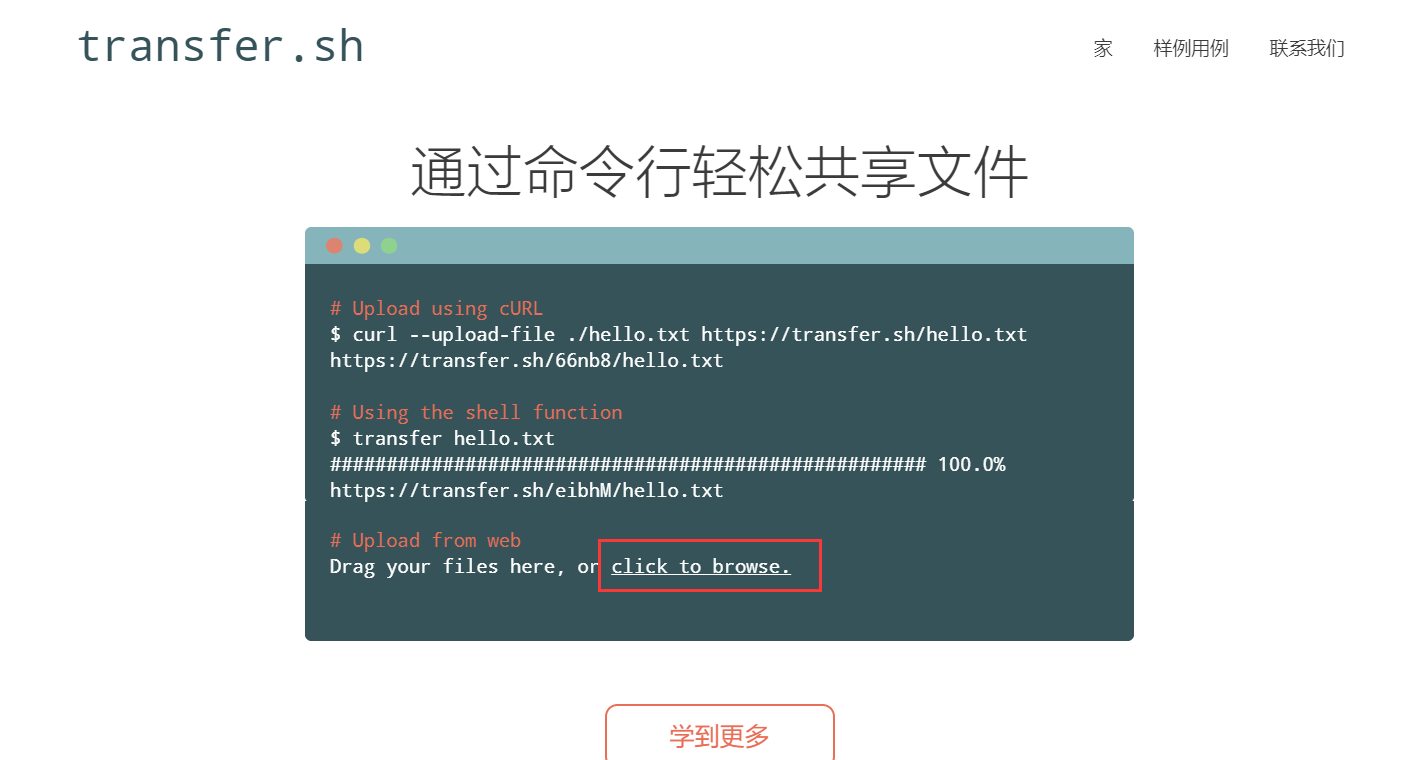
After uploading, extract the archive.
Start the Server
# Grant permissions
chmod 777 ./teamserver
# Start the server
./teamserver vps_ip connection_password
Client Connection
Only the host needs to be changed to the server IP address. Port 50050 stays fixed, and make sure the port is open. The username can be anything, but the password must be the server-side password.
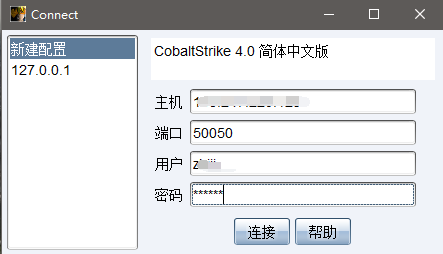
If the connection is refused, open the port with ufw allow 50050.
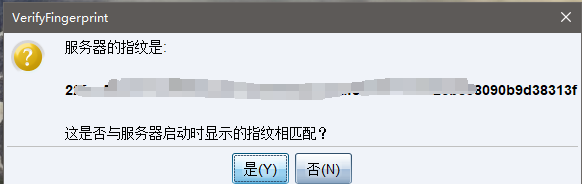
When a successful connection shows a string of numbers matching the server side, it means key matching is being used so the client and server connect directly without a third party. Click Yes.
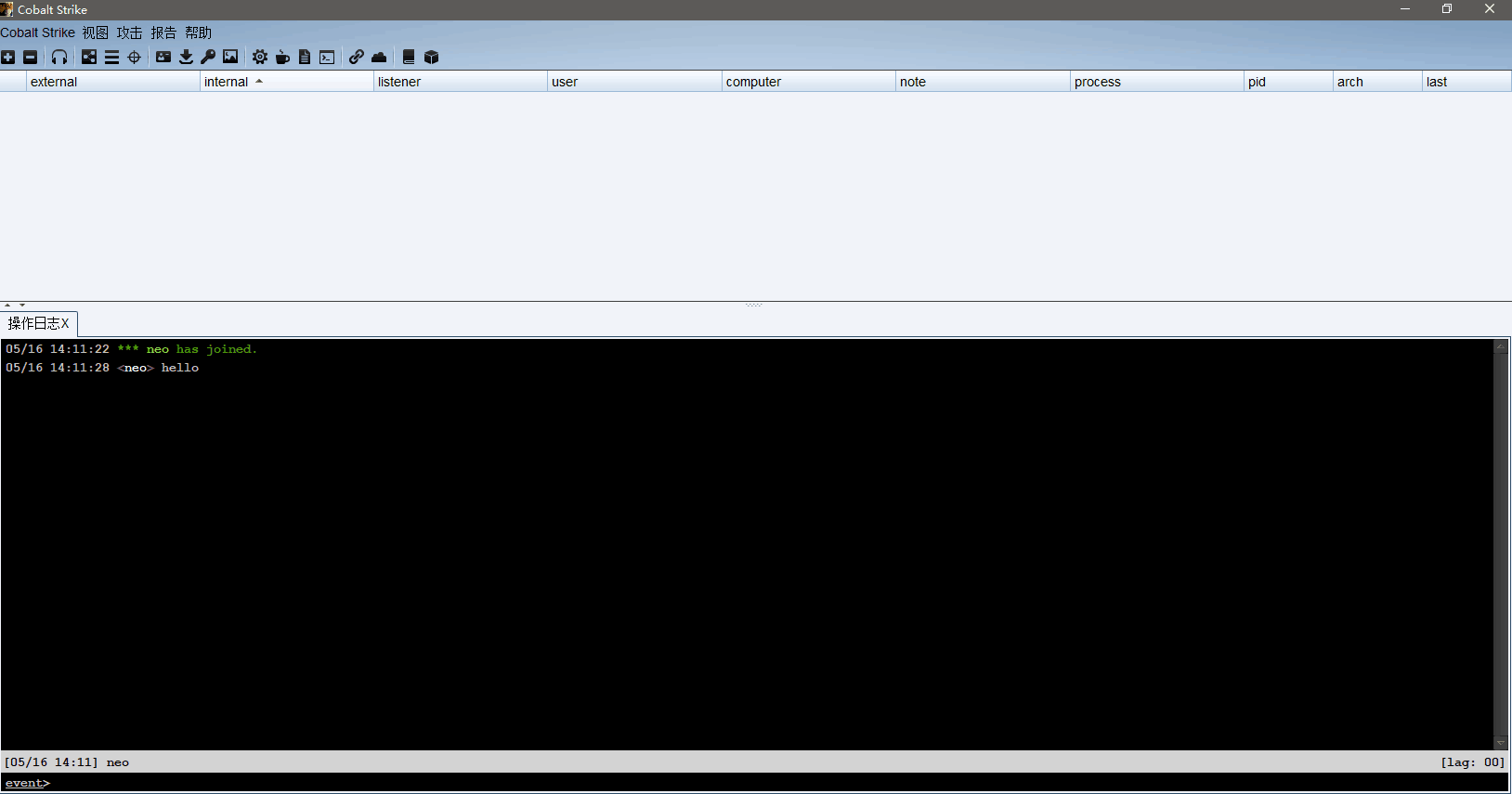
The connection succeeds and the environment setup is complete.